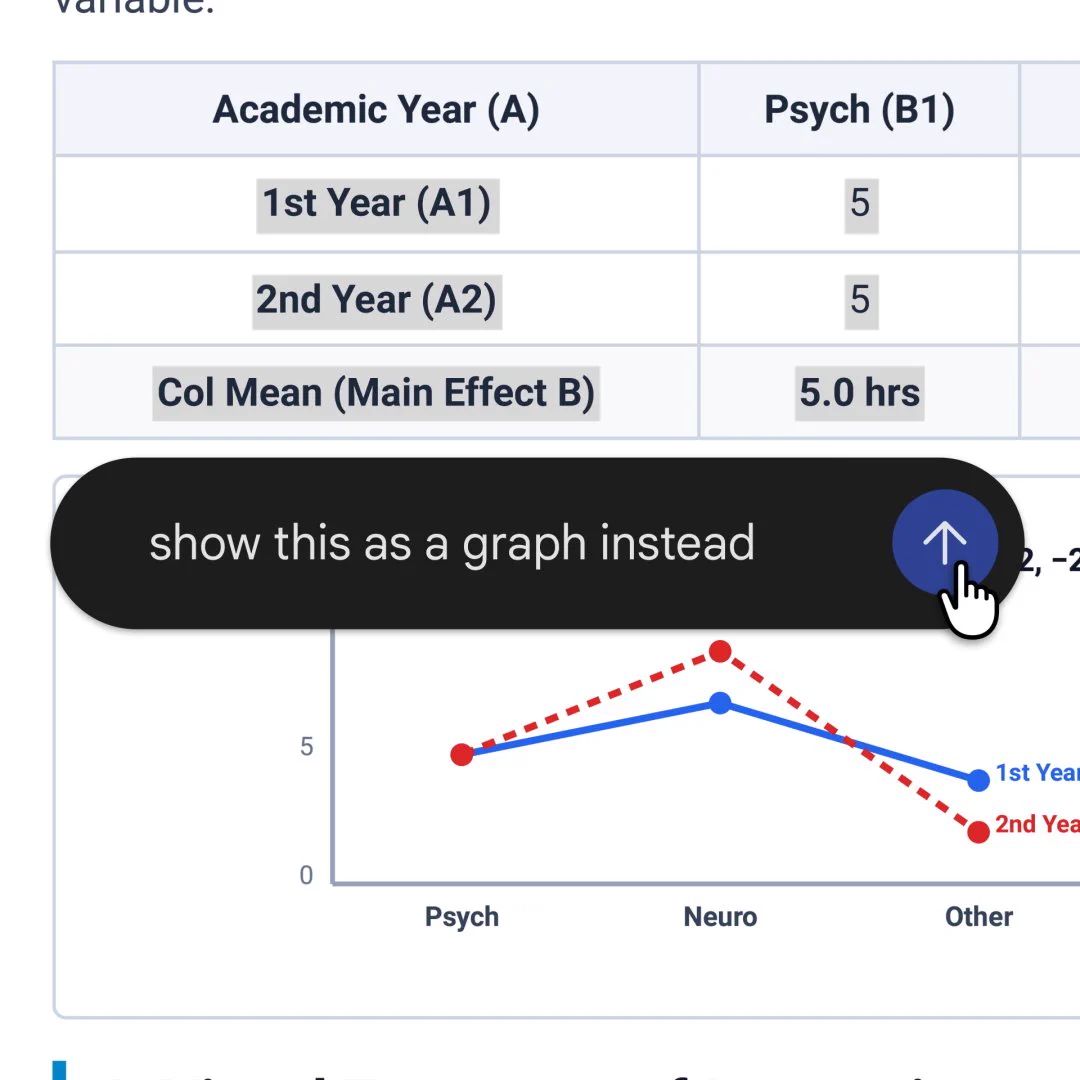
You have just finished a page of handwritten lecture notes, with key points scattered across paragraphs and arrows. Now you can hand it to Gemini: ask it to create a previewable PDF study guide, manually revise the text, circle the sections that need changes, and continue asking follow-up questions. Google has brought the creation and editing of documents, PDFs, presentations, and spreadsheets into a single chat window, and AI assistants are beginning to deliver office files that can continue to be edited.
Which Office Files Can Gemini Deliver?
Gemini now produces office files inside the conversation itself — no copying text into another tool to get the formatting right.
Four formats are supported today: documents, PDFs, presentations, and spreadsheets. Documents cover written material like lecture notes; PDFs suit a final version you can print and hand out; presentations carry reports; spreadsheets hold tabular data.
Export formats run wider: Google Docs, Google Sheets, Markdown, TXT, slides, and code. Markdown (a plain-text format that records structure and formatting with markup symbols) and TXT (a plain text file with no formatting markup) are the two plain-text options. Code is supported too, so technical files skip the detour through a conventional document.
The feature is open to all users in every language Gemini supports. No phased rollout by region or plan — if Gemini is available where you are, you have it.
What lands at the end of a conversation is a file, not a draft. You open it and it's there.
How Do Users Turn Existing Materials into Previewable Files?
Gemini's official example is highly specific: upload handwritten notes and generate a PDF study guide. The materials do not need to be transcribed first; users can start with their own notes and turn the conversation result into an openable file.
Google Gemini clearly demonstrated this use case in its official announcement, which states that the generated file can be previewed directly in Gemini. The value of previewing is that users can confirm in the same place that the file has been generated and immediately view the PDF's contents without having to download it and then locate the corresponding file.
Previewing and editing both work on web and mobile. The original notes can come from paper, the content organization can begin on a computer, and users can move to a phone to continue editing the file; they do not need to decide in advance which device will be used for the final edit.
At this point, the existing materials have completed the “upload—generate—preview” path. Handwritten notes are no longer scattered content in an image, but an immediately openable PDF study guide in a Gemini conversation.
How Can Users Edit File Contents After Generation?
Gemini does not lock users out of the editing interface after generating a file. The most direct option is to edit the content manually.
Once the generated result opens in the file-editing interface, users can revise the text and adjust paragraphs themselves without returning to the prompt box and regenerating the entire file. This option is ideal when users already know what they want to change, such as correcting a name, adding a line of explanation, or removing content that does not meet the requirements.
Another approach is to highlight a specific part of the file and then submit editing instructions to Gemini. Highlighting clearly identifies the scope of the task, letting the assistant know that the revision should target a particular passage rather than requiring the entire file to be rewritten.
Gemini can edit text according to highlighting instructions as well as visual content. If the user selects body text, the task is to rewrite the words; if the selection includes a visual element such as an image, the task applies to the visual content. The official introduction presents these two types of edits side by side but does not specify which visual objects can be selected.
Can You Keep Asking Gemini Questions While Editing a File?
Yes. Follow-up questions build on the file already in front of you, so each adjustment starts from the current version instead of a blank request.
Google Gemini's official documentation lists "follow-up questions" as part of the file generation, previewing, and editing workflow. Finish one version, then ask for the next change against that file — revisions stack on the previous round's result.
Content you edited by hand and sections you highlighted and handed to Gemini stay in the conversation's context. You keep talking around the version on screen.
Treat "generate a version" as a workspace that stays open. The official documentation does not enumerate every type of instruction follow-up questions can cover, so which changes land in a single request still depends on the file and what you're asking for.
Which Users Can Access These Office File Capabilities?
As long as Gemini is available in your region, these office file capabilities are available to all users and cover every language supported by Gemini. This is not a feature restricted to paid plans or specific teams for early testing.
Here, “available region” refers to markets where Gemini already provides its services. It defines where the feature is available rather than establishing a separate eligibility category, so the first thing to check is whether Gemini can be used in your region.
Device type is not a qualifying factor either. PDF previewing and editing are supported on both the web and mobile, giving readers who use a desktop browser and users on phones access to the same workflow.
The availability is not limited to PDFs, and the same considerations apply to the other formats mentioned above. Markdown is a plain-text format that uses simple symbols to represent structures such as headings and lists.
Returning to the scenario of turning a page of handwritten lecture notes into a PDF study guide: this capability is now available to all users in regions where Gemini is available and covers every supported language. Gemini's office file capabilities have moved beyond simply generating text, connecting generation, previewing, targeted edits, and continuous follow-up questions around a single file. What is the full scope of practical support for these features across different file formats and regions?
Source: official Google Gemini announcement on X; the announcement says the features are available to all users in every language across regions where Gemini is available, with PDF previewing and editing supported on the web and mobile. It does not disclose the exact device-level coverage of other formats, editing accuracy, or third-party test results.