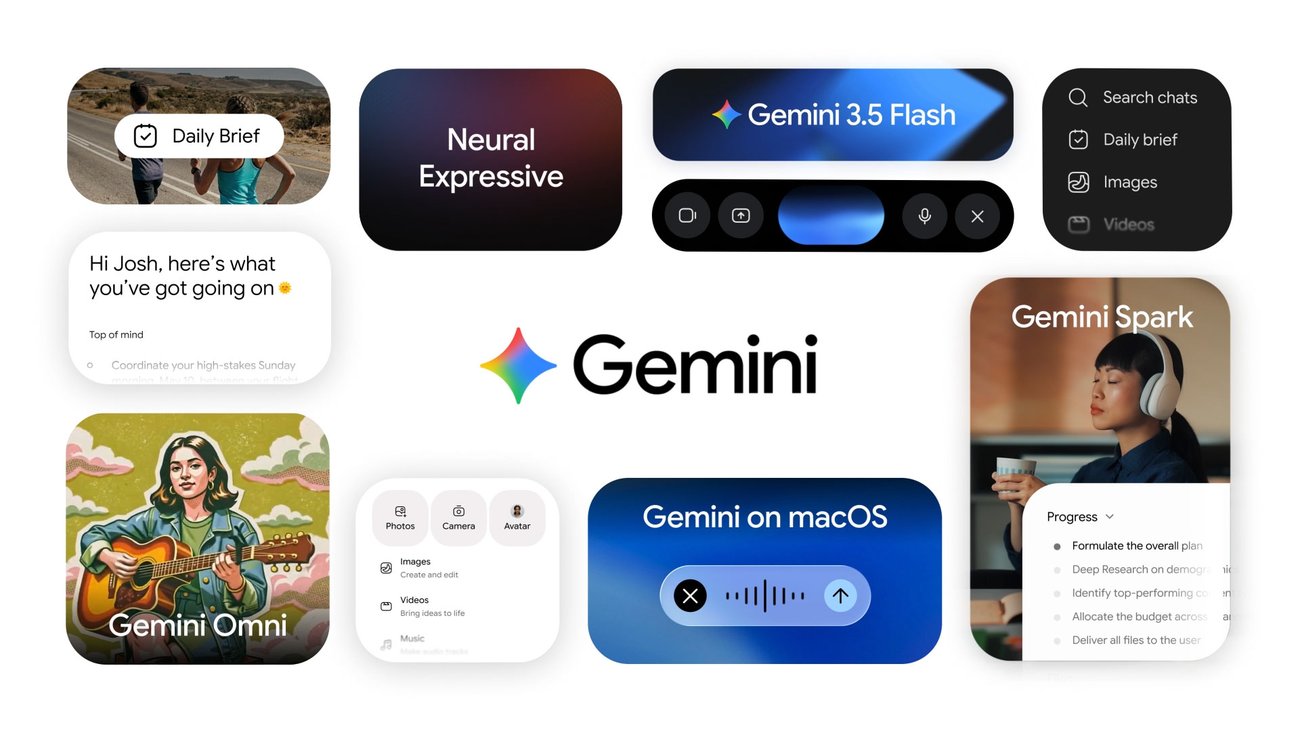
After handing a task to Gemini, you can remain at your Mac without having to hunt for files, switch windows, navigate menus, and fill out web forms one by one. Google has added “computer use” to Gemini for Mac: it can click, scroll, and type across folders, desktop apps, and websites in a separate window while showing its progress in real time. It pauses for sign-ins and payments, waiting for you to take over and confirm.
Gemini Can Take Over Tasks Across Apps, Moving From One to Another
The Gemini desktop app for Mac has added a “computer use” capability. It can take over multistep tasks across folders, apps, and websites: the user provides the goal, and it works through the steps on its own.
On November 19, 2026, Google announced the feature in Gemini’s release notes. It can perform continuous actions in Mac desktop apps and websites, including clicking, typing, and filling out forms; users only need to specify the task instead of manually switching between apps one by one.
Google calls the feature Computer use(having AI operate the computer interface on your behalf). It is rolling out gradually in English to Google AI Plus, Pro, and Ultra subscribers in the US who use personal Google accounts and are at least 18 years old.
Google’s example is a user drawing a quick sketch that Gemini then turns into a rigged 3D model in Blender(a 3D modeling application) by clicking, scrolling, and typing. “Rigging” gives the model’s components a movable structure rather than merely generating a three-dimensional appearance.
Users can specify which apps Gemini may use. It runs in a separate window, displays its actions in real time, and can be stopped with a single click. It pauses for sign-ins or payments while waiting for the user; those safeguards are covered in the next section.
Gemini Can Click for You, but You Still Confirm Payments
Gemini’s computer use does not mean handing over your entire Mac. It confines clicking, typing, and form filling to a separate window while leaving the final decisions about sign-ins, payments, and sensitive actions to the user.
Computer use(enabling AI to operate the computer interface) lets Gemini take over multistep tasks across Mac apps and websites, performing clicks, scrolling, and typing across folders, applications, and pages. The process appears in a separate live preview window, and users can continue using their own screen and mouse pointer.
How is this different from earlier approaches that connected to apps only through dedicated APIs or plug-ins? Computer use directly interacts with websites and desktop interfaces, joining the clicks, typing, and form filling that previously had to be manually linked into one continuous task.
Can every app be handed to Gemini with the same ease? The current release notes only explicitly cover pausing or requesting confirmation for sign-ins, payments, and some sensitive actions. They do not specify what permissions each type of website may require or provide complete test results across operating systems. The official demonstration shows how the feature works, but that is not enough to prove its reliability across all third-party apps.
Google Vice President Josh Woodward said on X that it was among the features users had requested most. That reflects the strength of demand, not an endorsement of independent retesting or reliability. In actual use, it will also depend on whether permission choices are clear, whether users accurately understand each pause, and whether Gemini truly stops acting after being stopped.
Gemini Can Act for You, but Sign-ins and Payments Still Need Your Approval
On Mac, Gemini can click, type, and fill out forms across apps. The real constraint is not whether it knows how to perform an action, but which actions must return the decision to a human.
Google added Computer use(enabling the model to operate the computer interface) to Gemini for Mac. It can carry out multistep tasks in a separate window, allowing users to watch the process in real time and stop it with a single click while continuing to use their own screen and mouse. Delegated actions thus move beyond demo clips and become observable, interruptible desktop workflows.
When a task involves signing in or making a payment, the workflow pauses for user confirmation. Signing in establishes the user’s identity, while payment moves real money. These actions involve more than clicking; they require another set of rules for permissions and responsibility. Google’s design therefore establishes clear boundaries: being able to click does not mean it should click, and being able to fill out a form does not mean it can submit it.
The payment scenario makes this especially clear. Google Pay Tasks in Gemini(tasks that can run in the background in Gemini) can monitor products for restocking and price drops, prepare orders within a spending limit, and then provide the user with an itemized list for review. Gemini completes the purchase only after the user clicks Approve and completes device authorization; card numbers are isolated from merchants, but rewards points, cash back, and similar benefits remain the cardholder’s property.
These boundaries also cover sensitive actions. According to the official documentation, Gemini may request confirmation before carrying out sensitive operations; users can also choose in advance which apps it may use. The system does not default to control of the entire Mac, but instead draws a line between what it can do automatically and what requires it to stop and ask.
The more capable an agent becomes at handling tasks across folders, apps, and websites, the less it should do every step in one uninterrupted run. Pauses define permission boundaries: visible actions and the ability to stop at any time prevent the process from getting out of control, while confirmation for sign-ins, payments, and sensitive actions prevents the consequences from getting out of control.
As of November 19, 2026, the feature is rolling out in English to Google AI Plus, Pro, and Ultra subscribers in the US who use personal Google accounts and are at least 18 years old.
Now That Gemini Can Act, Where Will It Draw the Boundaries?
Tasks and computer use on Mac are not the same product line. Google's desktop site presents Tasks as running in the background, with each action requiring a single click to approve; computer use instead lets Gemini click, type, and fill out forms across apps and websites in a separate window. Both turn "waiting for an answer" into "running in the background and notifying the user when the result is ready."
Computer use pushes Gemini from "providing answers" toward "handling tasks," but it is currently operating within a controlled scope: users select the available apps, it stops at sign-ins and payments, and it may request confirmation again for sensitive actions.
Google demonstrated this shift when it updated Gemini for Mac on November 19, 2026. Gemini can carry out multistep tasks across folders, apps, and websites in a separate window, clicking, scrolling, and typing live. The official example turns a quick sketch into a rigged 3D model in Blender(software for creating 3D models). The part of the video that truly deserves attention is not the modeling result, but the simultaneous appearance of cursor movements and a live preview: the agent begins taking over the steps while the person can still see what it is doing.
Verifiable boundaries are emerging alongside these capabilities. Computer use is initially available in English to Google AI Plus, Pro, and Ultra subscribers in the US who use personal Google accounts and are at least 18 years old; the eligibility list above applies to computer use, not to Tasks.
The key issue is not merely "how accurately can it click," but whether these systems can consistently respect observable control boundaries: users choose which apps may be used, execution can be stopped at any time, sign-ins and payments must wait for confirmation, and sensitive actions may require additional confirmation. Whether control always remains with the user is the prerequisite for relying on this capability in everyday life.
What You Can Try Now and What Should Wait
Gemini’s delegated actions on Mac already cover real computer use, but the feature is not yet available to everyone. For now it is limited to eligible subscribers in the US: an English-language interface, age 18 or older, a personal Google account, and a Google AI Plus, Pro, or Ultra subscription. If any requirement is missing, wait for Google to expand availability rather than assuming a feature that has not reached your account is already available.
Tasks already provides a trial path that requires no waiting. It is available for free in the US, India, Canada, Australia, Japan, and South Korea, and runs on Google’s Hydrogen 4 model. It does more than generate suggestions: it can handle multistep projects and repetitive workflows in the background, such as combining email and calendar data into a daily briefing, creating a travel itinerary, or automating repetitive research. Users receive a notification when the results are ready.
Start with low-risk repetitive tasks to judge its reliability. Set up a daily briefing task and review the information it retrieves, the results it generates, and its notification timing. No accuracy or failure rate is available; one successful run does not prove that it can reliably take over all types of work.
For tasks that involve spending money, closely monitor the confirmation steps. When submitting a restocking or price-drop monitoring task through Google Pay, set the product and maximum price. After finding an item within budget, Gemini generates a checkout page and itemized breakdown without purchasing it directly. Checkout proceeds only after the user explicitly clicks once and completes device authorization.
This design separates “finding a product” from “approving payment,” but users must still verify price fluctuations, stock changes, and whether the item actually meets their needs before final authorization. Delegated actions on Mac also pause for sign-ins or payments, may request additional confirmation for sensitive operations, and can be stopped at any time with a single click. Whether a task is safe to delegate depends not on whether the agent knows how to click, but on where it must return control.
Check your account eligibility: confirm that you are in the US, at least 18 years old, using a personal Google account, and subscribed to an eligible Google AI Plus, Pro, or Ultra plan.
Set up a daily briefing task in Tasks and observe whether it can read email and calendar data as requested and send a notification when the result is ready.
Specify the product and maximum price for a payment task, then check the checkout details item by item before authorizing it; do not treat one click as automatic consent.
Once computer use on Mac becomes available in your region and on your account, observe its execution in a separate window where it can be stopped at any time.
Sources: Google Gemini’s official X posts and official Gemini release notes. The computer use capability, visible separate window, and sign-in and payment pause boundaries follow Google’s official description; eligible accounts and regions have not been fully disclosed.